How to schedule Portfolio Slicer data refresh in the Power BI service
Overview
Scheduled refresh allows your published Portfolio Slicer reports in the Power BI service to stay up to date without requiring a manual refresh each time.
This usually depends on Power BI gateway and credentials being configured correctly.
General Process
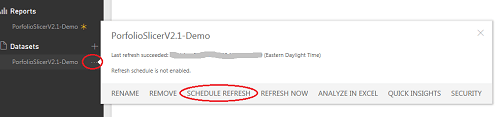
- Open the dataset settings in the Power BI service.
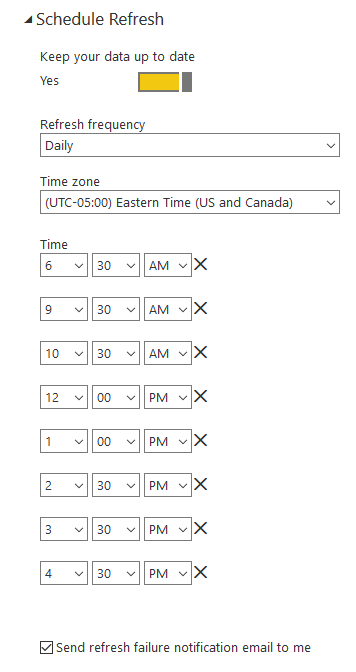
- Start the scheduled refresh setup.
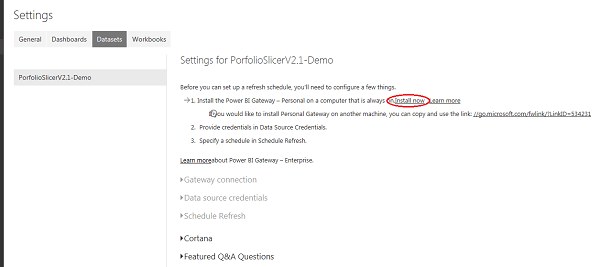
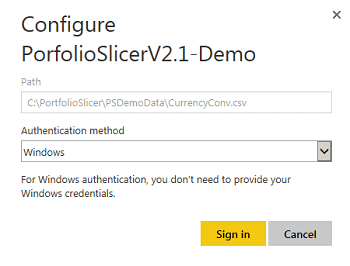
- Install and sign in to the required Power BI gateway if needed.
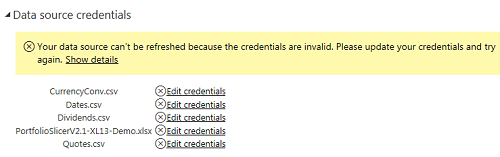
- configure credentials for the workbook and external file sources
- enable refresh scheduling
- test with a manual refresh
Important Notes
- scheduled refresh depends on your local data being accessible through the configured gateway path
- credentials must be valid for each required data source
- actual refresh timing may vary from the exact scheduled time
Practical Advice
Before relying on scheduled refresh:
- confirm manual refresh works first
- confirm the local computer and files required by the gateway are available as expected
- verify the published reports after the first successful scheduled run