File - Quotes.csv
Overview
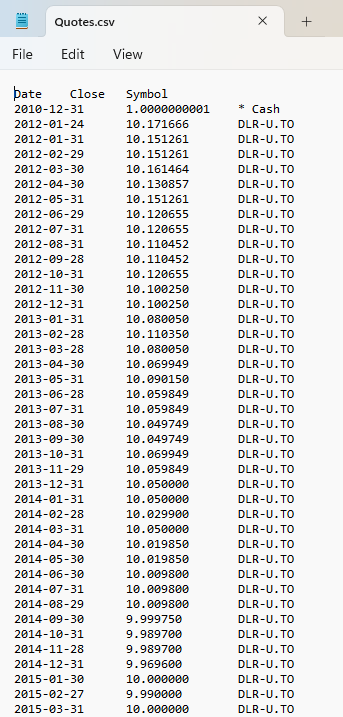
Quotes.csv contains the quote history Portfolio Slicer uses to value investments over time.
Without valid quote data, Portfolio Slicer cannot calculate holdings value correctly for affected symbols.
File source
This file is create by PowerShell script PSDataExtract\Scripts\psMakeAllDataFiles.ps1.
All data for this extract comes from files in folders PSDataExtract\Quotes\*.txt and PSDataExtract\QuotesIntraDay\*.txt.
File Structure
The file is expected to contain:
- a header row
- one row per quote record
- 3 fields:
Date,Close,Symbol
The values are tab-separated.
The first data row is often a placeholder record for * Cash and can be ignored.
Core Requirements
A valid Quotes.csv should follow these rules:
- the first row is a header
- each following row contains a date, close value, and symbol
- dates use the
YYYY-MM-DDformat - close values are valid numeric values
- each symbol matches the symbol naming expected by Portfolio Slicer
- duplicate rows for the same
Date + Symbolcombination do not exist - the file covers the historical period Portfolio Slicer needs
Daily Versus Monthly Quotes
Portfolio Slicer can work with a mix of quote density depending on the reporting period.
In practice:
- more recent periods often benefit from daily quotes
- older periods can often be stored as monthly quotes for better performance
That is why some workflows keep daily quotes for recent business days and monthly quotes for older history.
Symbol Matching
Every symbol appearing in Quotes.csv should also exist in the Excel Symbol table.
If the quote source uses a different naming convention, you may need to align it using:
- the Symbol table
- the Symbol Alias table
- rename logic in psConfig.txt
If symbols do not match, Portfolio Slicer may refresh successfully but still fail to show the expected holdings values.
Generated Quotes
Some investments may have effectively static prices or special pricing behavior.
For those cases, Portfolio Slicer supports generated quotes, which can be appended through script workflows.
See:
Practical Advice
- inspect the final file after running the scripts
- confirm that every test symbol appears as expected
- treat missing symbols or suspicious prices as a data issue first
- verify the date range before troubleshooting the workbook itself